

https://vnish.ru/antminer-stock-firmware-en/
IN drop-down list we choose my model miner ( amlogic ). Next download SD image

The downloaded file will be in the form of an archive. It must be unpacked to any convenient place on the computer. For this Can take advantage of How built-in by means Windows, So and any of your favorite archivers, for example, WinRAR .

Download and Launch file installer Setup_v2.2.0.exe
In time installations in all windows Click the Next button and in the last window Install without changing any settings.
On step choice folders For installations – remember/write down this path – He will be needed below.
After installations the most programs will automatically launched Master installations device drivers. Here, too, in all windows, click Next and finally Finish.
Copy attached file licenses SECURE_BOOT_SET V folder license V folder program installation

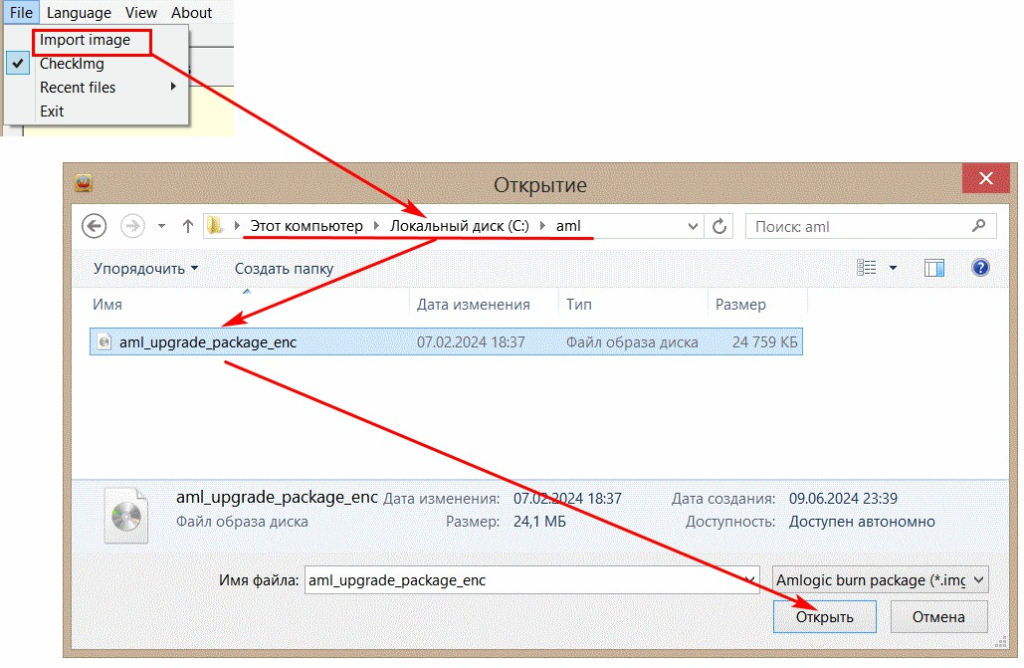
 Let’s open file With firmware having indicated folder Where unpacked files V point 1:
 IN basically window programs we are setting up region Configuration How on picture below. Set ONLY the boxes shown, otherwise you can completely kill the board.
 On the contol board jumper we close jumper JP1. Let’s connect USB- microUSB cord one the end to the control board and the other to the PC. We turn on the control unit power.
Because drivers are copied V system automatically at installation USB_Burning_Tool , That They either automatically installed when the board is connected, or the new hardware (drivers) installation wizard will start. In the latter case, simply agree with everything that the installation wizard offers.
At successful installation drivers in main window programs USB_Burning_Tool a line with a new connected device will appear in the top table.
 Click button Stopand close program USB_Burning_Tool